OpenCV tools
The tool based on Open CV Computer Vision library which is an open-source product that includes many CV algorithms. Some of these algorithms can be used to simplify the annotation process.
First step to work with OpenCV is to load it into CVAT. Click on the toolbar icon, then click Load OpenCV.
Once it is loaded, the tool’s functionality will be available.
Intelligent scissors
Intelligent scissors is an CV method of creating a polygon by placing points with automatic drawing of a line between them. The distance between the adjacent points is limited by the threshold of action, displayed as a red square which is tied to the cursor.
-
First, select the label and then click on the
intelligent scissorsbutton.
-
Create the first point on the boundary of the allocated object. You will see a line repeating the outline of the object.
-
Place the second point, so that the previous point is within the restrictive threshold. After that a line repeating the object boundary will be automatically created between the points.
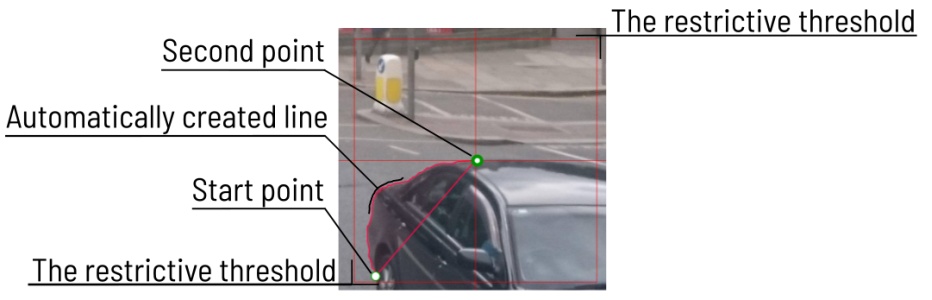
To increase or lower the action threshold, hold
Ctrland scroll the mouse wheel. Increasing action threshold will affect the performance. During the drawing process you can remove the last point by clicking on it with the left mouse button. -
You can also create a boundary manually (like when creating a polygon) by temporarily disabling the automatic line creation. To do that, switch blocking on by pressing
Ctrl. -
In the process of drawing, you can select the number of points in the polygon using the switch.

-
You can use the
Selected opacityslider in theObjects sidebarto change the opacity of the polygon. You can read more in the Objects sidebar section. -
Once all the points are placed, you can complete the creation of the object by clicking on the
Donebutton on the top panel or pressNon your keyboard. As a result, a polygon will be created (read more about the polygons in the annotation with polygons).
Histogram Equalization
Histogram equalization is an CV method that improves contrast in an image in order to stretch out the intensity range. This method usually increases the global contrast of images when its usable data is represented by close contrast values. It is useful in images with backgrounds and foregrounds that are both bright or both dark.
-
First, select the image tab and then click on
histogram equalizationbutton.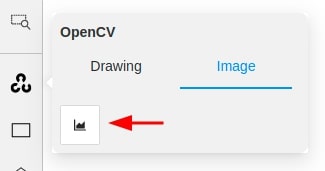
-
Then contrast of current frame will be improved. If you change frame, it will be equalized too. You can disable equalization by clicking
histogram equalizationbutton again.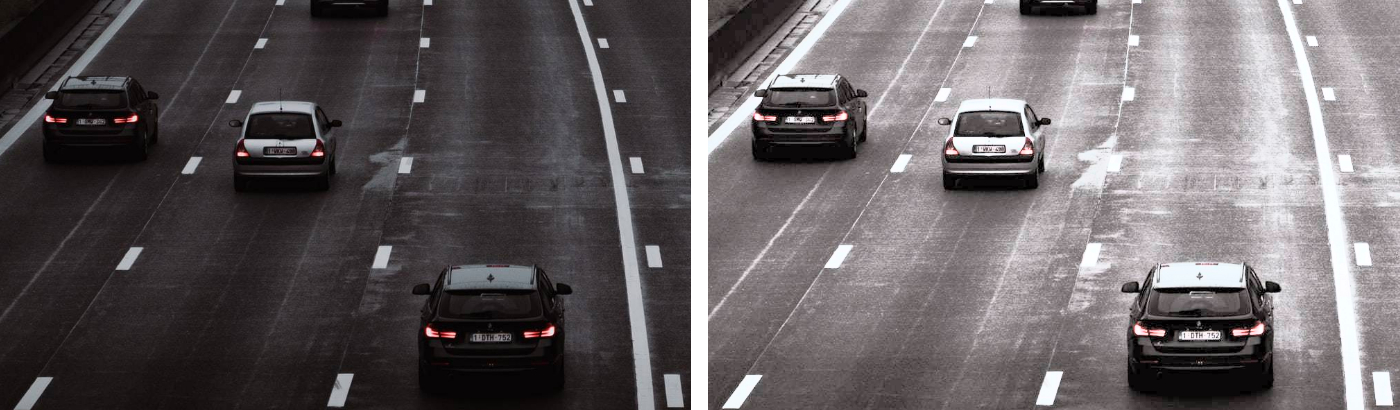
TrackerMIL
Trackers are used to automatically annotate an object on video. The TrackerMIL model is not bound to labels and can be used for any object.
-
Before you start, select the
OpenCV toolson the controls sidebar and go to theTrackerstab. Then select aLabelandTrackerfor the object and clickTrack. Then annotate the desired objects with the bounding box in the first frame.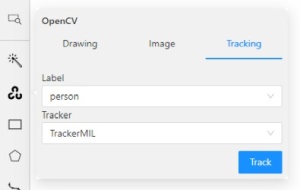
-
All annotated objects will be automatically tracked when you move to the next frame. For tracking, use
Nextbutton on the top panel or theFbutton to move on to the next frame.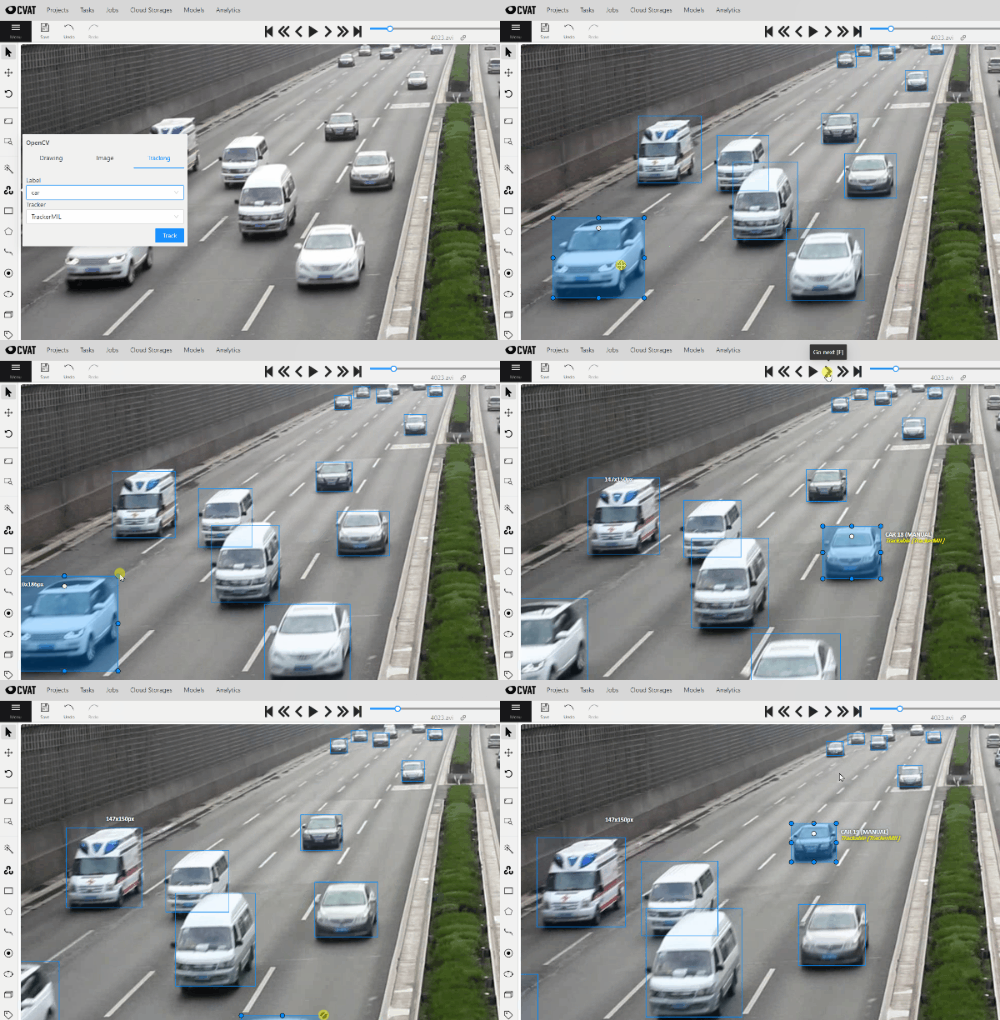
-
You can enable/disable tracking using
tracker switcheron sidebar.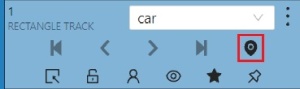
-
Trackable objects have indication on canvas with a model indication.
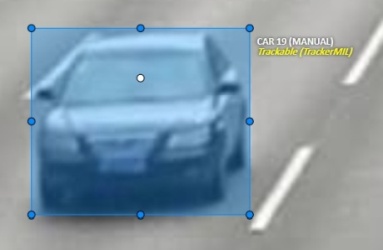
-
You can follow the tracking by the messages appearing at the top.